Using the Loop Expression in After Effects can be scary at first. It’s a bit like coding, so it can be confusing if you just want to get your edits done. However, expressions are incredible pieces of code that can save you hours creating complicated repeating animations, so they’re worth learning.
One of the most useful expressions to learn is the After Effects Loop Expression. In this guide, Motion Array will teach you how to use expressions and LoopOuts in After Effects as well as how they work, so you can customize them to your needs.
Summary
Part 1: The structure and types of After Effects loop expressions
Expressions are a tiny piece of JavaScript code that you use within animated properties in After Effects. They simplify everything into a single value on a single layer at a specific point you choose. While there are some fantastic animation presets you can try, knowing how to make your own is a very useful skill.
First you’ll need to understand how a loop expression in After Effects is made. There are 3 distinct sections to any loop expression: the Property, the Loop Type, and the Modifier. These 3 elements create a command that After Effects can use to loop your keyframes in several ways.
One of the most used expressions in animation is the LoopOut PingPong effect, which we will use for this example.
loopOut(“pingpong”,1)
1. The Property: loopOut(“pingpong”,1)
There are 2 pairs of Loop Properties to know:
LoopIn and LoopOut: As you can probably guess, each of these loop types tells After Effects whether the loop starts before (LoopIn) or after (LoopOut) your keyframes.
LoopInDuration and LoopOutDuration: These are slightly different as they enable you to tell After Effects to base the loop on seconds rather than keyframes. To do this, you’ll need to add a modifier, which we’ll discuss below. In general, the duration loops are only used in specific circumstances — for example, if you want to quickly adjust how long the loop takes before the first keyframe (LoopInDuration) or after the last keyframe (LoopOutDuration) without changing your keyframes.
2. The Loop Type: loopOut(“pingpong”,1)
The Loop Type is where you decide the type of animated loop expression After Effects will create. There are 4 Loop Types available:
(“Pingpong”)
The PingPong Loop will take your first and last keyframe and move back and forth between them.
(“Cycle”)
The Cycle Loop repeats your keyframes in order. If your last keyframe has the same values as your first, After Effects will create a never-ending animation loop.
(“Offset”)
The Offset Loop is challenging to understand, but incredibly powerful to use. The Offset Loop repeats your keyframed animation, but offsets it, so it begins again from the last keyframe. Confused? We don’t blame you — check out the example to see it in action. It’s easier to understand visually.
(“Continue”)
The Continue Loop can tie up the ends of animated scenes when you want everything to disappear neatly from the screen simultaneously. This loop expression in After Effects continues the speed/value of your last keyframe. The animation continues forever — at least, until you decide to end it, that is. Why not try it out to boost your photo animations?
3. The Modifier: loopOut(“pingpong”,1)
The Modifier is the final expression instruction you’ll give After Effects. In some cases, it’s not needed at all. When using the duration-based properties, the Modifier instructs After Effects on the number of seconds to repeat.
For the LoopIn and LoopOut expressions, the Modifier tells the program how many of your keyframes you want to apply the loop to. Do note that the number doesn’t directly refer to the keyframes, but to the animated section between keyframes.
For example, if you use the LoopOut property with a Modifier of 1, After Effects will repeat the animation between the last 2 keyframes in the Timeline. If you use a Modifier of 2, it will repeat the animation between the previous 3 keyframes.
Part 2: How to use the Loop Expression in After Effects
The Loop Expression in After Effects can add a keyframe to any value. In this example video, you can see what happens if you apply the expression to the Position Value. There are many more values you can play with, however, so don’t be afraid to experiment a bit.
- Create your keyframes as with any animation project.
- Select the Value you want to add an Expression to in the Timeline.
- Go to Animation > Add Expression. You can also hold Alt (Option for Mac) and hit the Stopwatch icon alongside the Value.
- In the box on the Timeline, type or paste in your expression. You’ll notice that After Effects predicts what you want to use and gives you a handy dropdown menu from which to select elements.
- Check your animation and add a modifier if you need to.
Pro Tip: If you’ve applied your After Effects Loop Video Expression and want to adjust your keyframes, it can be tricky to see what’s happening. Use the = button next to the expression to turn it on and off. This stops you from needing to delete your expression to make adjustments.
Part 3: Creative ways to use LoopOuts in After Effects
Now that you know how to use loop expressions, you may be sour about the time you’ve wasted on manually animating LoopOuts in After Effects before. Don’t worry! You’ll soon think of exciting projects to test out these skills, like new motion graphics. Here are a few ideas.
Variety of values
You can use more than 1 expression on each element in your project, such as changing the size and position in different ways. Using loop expressions this way can help you create repeating motion backgrounds or simple elements, like clouds passing in a scene.
Typography projects
Loop expressions can be used to turn text transitions into incredible text effects with a simple PingPong expression. Add your text transition and create new keyframes for where you want the animation to repeat. Then add a Modifier to your expression to loop the part of the transition you want to repeat.
With other effects
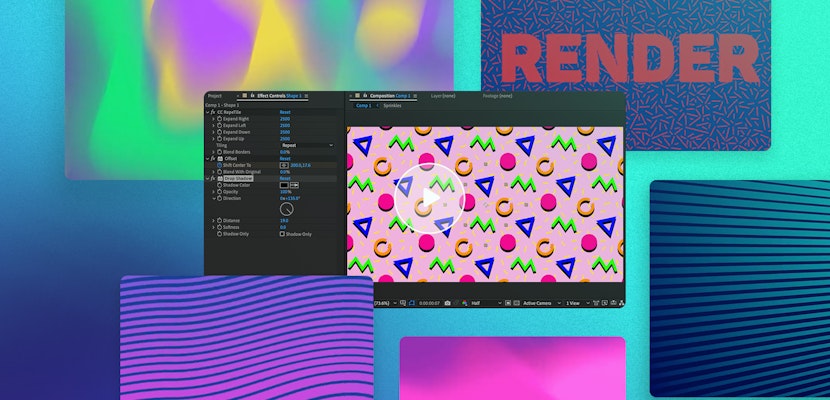
Using loop expressions doesn’t prevent you from using other effects. A fun effect to use with LoopOut expressions in After Effects is the built-in RepeTile effect. This is a great way to create complex background graphics quickly.
Expressions are a powerful but often neglected tool for animators. Once you get the hang of creating these simple expressions, you can experiment and combine them to create cool effects. All it takes is a tiny piece of code!
The Loop Expression in After Effects is one of the easiest expressions to learn. It’ll also save you a lot of time when dealing with complicated keyframing. Now you know the basics, why not learn about 6 common After Effects expressions you can use, too?