


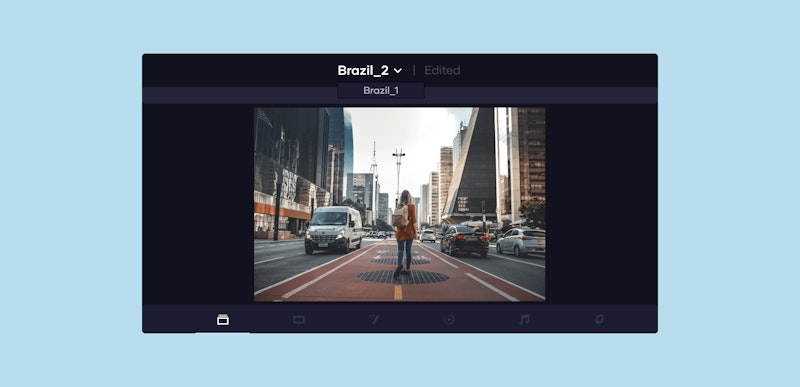
Have you ever wondered how you can quickly change the project you have open in DaVinci Resolve? Then you’ll love the DaVinci Resolve dynamic project switching function.
Dynamic project switching lets you move between projects with just a couple of clicks. Keeping multiple projects open allows you to easily copy and paste clips or even node settings between modules.
This is helpful if you’ve downloaded a template and want to move those files between projects, or if you wish to replicate a color grade quickly. Just remember that any open projects will take up space on your computer’s RAM.
Even though opening multiple big projects in DaVinci Resolve and leaving them open in the background could slow down your computer’s performance, on the whole, this tip is sure to save you time when hopping between edits.
Summary
Part 1: How to use DaVinci Resolve’s dynamic project switching
Turning on DaVinci Resolve dynamic project switching is simple. All you have to do is make sure that dynamic switching is enabled. Once it’s on, switching between projects will be a breeze! You’ll also be able to copy elements from one project to another quickly and efficiently. If you need to brush up on using DaVinci Resolve, Motion Array has a helpful beginner’s tutorial you can enjoy.
Step 1: Enable DaVinci Resolve’s dynamic project switching
First you’ll ensure that DaVinci Resolve’s dynamic project switching setting is turned on. If you don’t see it, you may need to update DaVinci Resolve.
- Go to the Project Manager by clicking File > Project Manager. You can also use a keyboard shortcut by pressing Shift+1 simultaneously.
- Right-click anywhere in the project area of the window and select Dynamic Project Switching. A tick should appear next to it.
Step 2: Open the projects to switch between
Now you can use DaVinci Resolve to open multiple projects whenever you need, but remember not to open too many big projects at once as this can slow down your computer. Opening multiple projects is useful for editors to reference and copy elements between projects quickly. It also lets you compare different versions or cuts of the same video, and will help boost your productivity. Motion Array’s YouTube Channel has great tips and tricks for you to try, too.
- Double-click on the first project you’d like to open from your Project Manager menu.
- If you already have another project open, use the same method to open a second project.
Step 3: Switching between projects
Now that you’ve used DaVinci Resolve to open multiple projects, there’s more than one way to switch between them. If your computer can handle it, these 2 methods will be quicker than returning to the Project Manager every time.
Click on File and hover over Switch Project to see which projects are open. Click on the project you want to navigate to.
Alternatively, you can change projects by clicking on your project’s name in the panel above the preview window. Select which project you want to switch to from the dropdown menu.
Step 4: Closing projects
While DaVinci Resolve’s dynamic project switching is useful, it’s important to note that it’s also resource-hungry. To keep your computer’s performance speed up, close projects when you finish them. You’ll also want to close other projects when you export video.
- Go to the File menu and select Close Project.
- Close any projects you don’t need to keep open anymore by clicking on them.
Part 2: Copy and paste between projects
Now that you know how to switch between projects, there are many ways to use this method to speed up your editing. Copying and pasting sequences between your projects is just one example, and it’s helpful when using DaVinci Resolve templates. You can also use DaVinci Resolve to combine 2 projects.
Step 1: Open the correct projects
Ensure you’ve opened the new project timeline where you’ll paste your new content and the older project, which already contains the sequence or settings you want to copy. Visual effects add great value to a project and you may want to reuse a favorite, so copying between projects is useful to do. Here’s a reminder of how to open your project:
- Click on File > Project Manager to open a new project.
- Double-click on the project you want to open.
Step 2: Copy from a project
Now you only need to copy your content from the old project to the new one. For example, as you’ll see in the video, you could copy this DaVinci Resolve template between the 2 projects. You could even copy 2 entire projects into a new, bigger video and use DaVinci Resolve to combine 2 projects this way.
- Ensure you’ve opened the project you want to copy from.
- Left-click on a blank space on your timeline and press Ctrl+A (Cmd+A for Mac) to select all clips on the timeline. You can also left-click+drag (Ctrl+drag for Mac) the clips with your mouse to select only a few.
- Right-click and select Copy.
Step 3: Switch projects and paste your clips
DaVinci Resolve’s dynamic project switching allows you to open your new project and paste your content in seconds. Let’s walk through the steps once again:
- Switch to your new project using one of the methods in Part 1.
- Right-click and select Paste to insert your copied clips where the playhead is. This will overwrite any existing clips on the timeline.
- You can also right-click and select Insert Paste to insert the clips where the playhead is. This will move other clips along to compensate instead of overwriting them.
And that’s all there is to it! Your days of opening and closing projects to copy and paste a few clips each time are over. Maybe this new work tip will help you unlock new creativity, too.
As you get used to using DaVinci Resolve dynamic project switching, it will speed up many of your workflows. Copying over settings, effects, and templates will now be much quicker. Who knew that one little feature could save you so much time? Motion Array has many other helpful DaVinci Resolve tutorials you can enjoy, so have fun exploring.


