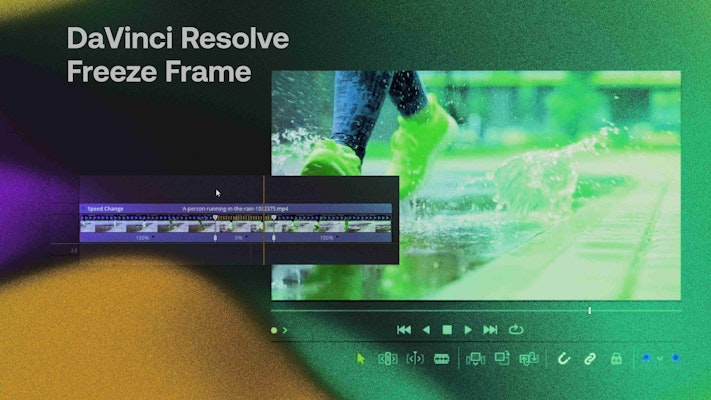
In the days of shooting on film, creating a freeze frame meant optically reprinting the selected shot for as many frames as needed. Nowadays, it’s as easy as pressing a button. Video editing software like DaVinci Resolve has sophisticated but simple tools to retime your video to create anything from freeze frames to speed ramps and every timing in between. Let’s look at how to create and use freeze frames in DaVinci Resolve.
Summary
Part 1: Learn how to create freeze frames in DaVinci Resolve
DaVinci Resolve makes it easy to create a freeze frame in your video. You can also use DaVinci Resolve to grab stills once frozen, all right on the Edit page. If you’re not sure how the Edit page works, you can check out this DaVinci Resolve beginner’s tutorial. Now, here are 2 quick methods you can use to grab your still.
Option 1: Change clip speed
When you right-click on any clip or use the shortcut R, you’re presented with the Change Clip Speed dialog. There’s a checkbox for freeze frames in DaVinci Resolve, and when you check it, it will change your clip to a freeze frame (or still frame) from the position of the playhead. It will also change the entire remainder of your clip to a freeze frame. This is a great way to use DaVinci Resolve to grab stills.
You can now use this freeze frame as a regular still image, and even export the still frame in DaVinci Resolve. This can be very handy for corporate videos — just adjust the length to suit.
If you want to briefly freeze a frame and then continue the clip, you must cut the desired frame from your clip using the Blade tool. This is how:
- Move the playhead to the frame you want to freeze.
- Using the Blade tool, cut the clip at the playhead. This is similar to splitting DaVinci Resolve clips, except you’re splitting only 1 frame.
- Jump 1 frame forward (press the right arrow key).
- Again, cut the clip at the playhead. You can use zoom to see better if you need to.
- Select your single frame, then press R or right-click. The Change Clip Speed dialog will open. Click the Freeze Frame checkbox and then select Change.
- Your frame is now frozen at 1 frame in length. You can always use DaVinci Resolve’s Undo function if you make an error.
- Use the Trim Edit tool to extend your freeze frame’s duration as desired.
Option 2: Retime controls
An even better way to achieve quick freeze frames in DaVinci Resolve is using the retime controls.
- Access the Retime controls by right-clicking on your clip or using the shortcut Ctrl+R (Cmd+R for Mac).
- Place the playhead where you want to start your freeze frame. Click the small black triangle and expand the menu. Now click Freeze Frame.
- The selected frame is frozen for a fixed duration and the remainder of the clip continues at normal speed.
- Drag the vertical bars, which are speed points, to show on either side of the freeze frame. This will change the duration.
Pro Tip: Open the Retime Curve to display a graph, which you can use to add more keyframes, smooth the curve, and even slow or speed up to the freeze frame.
Export still frames in DaVinci Resolve
Do you need a still frame of your freeze frame? You can grab a still in the Color page. Right-click in the viewer with the playhead positioned on the individual frame. Then you can export the still frame from DaVinci Resolve as a .jpg, .png, or .tiff. You can then right-click the still in the stills gallery and select export.
Part 2: Create cool freeze frame intro titles in DaVinci Resolve
Here’s how you can use this freeze frame technique to explore Fusion in DaVinci Resolve and create some epic titles.
- Use the method in Option 1 to create a freeze frame in your clip where you want the title to show. Make sure you extend it to be 2 seconds in length.
- Select the freeze frame and go to the Fusion page.
- You will now add 3 Background nodes, which will make up the core of your title animation.
- Add the first background node and reduce the Opacity by changing the Blend mode in the Merge node. Also change the color of the background node to something nice, like a pastel hue. Make sure you can see through this background node.
- Add another Background and Merge node, and change the color to the same or similar as before. Don’t change the Opacity this time.
- Instead, add a Rectangle mask to the Background node. Then adjust the Angle, Width, and Height of the mask. It should span the screen at an angle.
- Duplicate the Merge and Background nodes as well as the Rectangle mask. Now adjust the Position, Size, and Color to be just above and a little thinner than the previous Background node.
- Use keyframes on the position of the rectangle mask to animate the rectangle so it slides in and out.
- Add a Text node with your subject’s name in a bold font and color. Then animate the text. You’ll use keyframes on the Write On effect in the Inspector.
- Your basic animation is now done. You just need to mask the subject and overlay it.
- To do this, copy your MediaIn node and paste it after all your other nodes. This will overlay everything. Now use a Polygon mask to cut out your subject carefully.
- You’re done! Play your clip on the Edit page to see the full effect.
If this sounds like too much work, check out these awesome title freeze frames for DaVinci Resolve by Motion Array. These handy templates will give you the same effect without you needing to make anything yourself. It’s a great way to speed up your editing.
It’s now simple to create a freeze frame in DaVinci Resolve. There are a couple of ways to create freeze frames, and you can also easily export still frames in DaVinci Resolve. Freeze frames can also be used in Fusion to make great titles. Plus, you can choose DaVinci Resolve effects or title templates to create similar effects. Power up your creativity with this useful animation style today. Don’t forget to explore Motion Array’s other DaVinci Resolve tutorials for more inspiration.