



Adding music to your videos is one thing, but what if you want to showcase the beats a little more? Audio visualizers in After Effects, Premiere Pro, and Final Cut Pro create highly stylized, engaging, and animated visuals of any music. These stunning graphics can add extra pep and dynamism to your music videos with very little effort.
Motion Array has plenty of free and paid templates you can experiment with, too. Check them out below and start creating awesome music videos today. If these templates aren’t what you need, keep reading to learn how to make your own visualizer.
Summary
Part 1: 17 free and paid audio visualizers to add a new beat for creatives
1. Free Audio Visualizer AE Templates
Jump into After Effects and create a slick, clean visualizer for any music track. Simple lines and shapes make this perfect for any kind of music, and it’s totally free to download!
Free Audio Visualizer AE Templates Download
2. Audio Waveform Visualization
Make your videos crackle with this electric-neon pink and blue waveform. This H.264 stock video file can be included in any project and would look great in a music video or social media footage to show off the music.
Download Audio Waveform Visualization Now
3. Waveform Audio Visualization
This is for you if you’re creating a music video or trailer for a podcast or audiobook and want to include audio previews. Download this Final Cut Pro project and use one of 21 premade, customizable templates.
Download Waveform Audio Visualization Now
4. Minimal Audio Visualizer With Lyrics
Here are 2 After Effects audio visualizers in 1. Choose the style that suits your project, drop in the media, and tweak the text. You’ll have a custom sample for your new track in no time.
Download Minimal Audio Visualizer With Lyrics Now
5. Retro Wave Audio React
This After Effects audio spectrum template gives your music videos a retro 80s vibe with its groovy purple-mountain desert visual. Customize any dynamic project by adding your logo, a progress bar, and a timer.
Download Retro Wave Audio React Now
6. Classic Audio Visualizer Logo
With this After Effects audio visualizer, you can choose from 2 retro cassette-tape effects. Edit the text and swap out the logo, background image, and music, and use it as a backdrop to your DJ sets or YouTube performances.
Download Classic Audio Visualizer Logo Now
7. Sound Waveform Tunnel
This otherworldly waveform tunnel is a thrilling journey down an electric-neon road, jumping with lights and buzzing with energy. It’s an ideal addition to any music video or live performance – simply download this H.264 file and drop it into your project.
Download Sound Waveform Tunnel Now
8. Audio React – Neon Music Visualizer
Choose from 8 ready-made music equalizers that react and light up in time with the music. Advertise your upcoming album and singles, and customize the vibrant neon look to the images using After Effects.
Download Audio React – Neon Music Visualizer Now
9. Audio Visualizer
This downloadable After Effects audio visualizer offers 2 versions in different aspect ratios. A logo placeholder, an audio placeholder, and 2 editable text layers let you alter the template to fit your project.
10. Rainbow Ring DJ Visualizer
If you’re looking for a backdrop for your DJ sets, look no further. This beautiful rainbow ring pulses with electric energy and is guaranteed to give your music a visual boost. It’s an HD video file so you can use it in your other videos and social media posts, too.
Download Rainbow Ring DJ Visualizer Now
11. Audio Visualizer With Lyrics And Loop
With this After Effects audio spectrum, you can create a striking visual effect for your music, including seamless loops. Use it to promote a new single or album release, and animate the lyrics in moments with easily adjustable layers.
Download Audio Visualizer With Lyrics And Loop Now
12. Liquid Audio Spectrum
Harness the slow, liquid movements of this After Effects audio visualizer in your music videos. Crank up the color for a cyber feel or tone it down for a gooey, realistic look. It comes with 1 media placeholder and 2 fully editable text layers and can be used in almost any project.
Download Liquid Audio Spectrum Now
13. DJ Artist / Music Visualizer
This promo video for DJ sets and upcoming gigs is an incredibly dynamic After Effects project. There are 4 unique designs with 2 text placeholders, 1 media placeholder, and 1 music placeholder to play with.
Download DJ Artist / Music Visualizer Now
14. 12 Style Music Visualizers
This slick and clean After Effects project contains 12 unique equalizers. You can easily edit the colors, beat power, equalizers, and other controls. Why not try them for social media posts to advertise your music?
Download 12 Style Music Visualizers Now
15. Music Visualizer
There are 4 animated designs to choose from in this After Effects audio visualizer. Within each design, you can edit the text, logo, and images as well as the music itself. The bright neon vibe is fantastic for club music.
16. Audio Visualizations Pack
This is a huge page with 20 unique designs to choose from. Each design contains an image, equalizer, and editable text. Simply choose the design that best fits your music or upcoming album, and tweak the assets to your liking.
Download Audio Visualizations Pack Now
17. Audio LED Meter
Pick your favorite design from the 2 available in this LED-themed After Effects audio spectrum. Swap out the logos, text, and music, then use the intelligent color controller to improve the quality of your music videos.
Part 2: How to use an audio visualizer template
So you’ve chosen your favorite audio visualizer template. What’s next? Follow these simple steps to kick things off.
Prepare your audio
You must first prep your music before creating your audio spectrum in Premiere Pro or After Effects. This tutorial uses After Effects, but the steps are similar for any video editing software.
- Open the Motion Array project file you’ve downloaded.
- Import your media by going to File > Import and selecting your image and audio track.
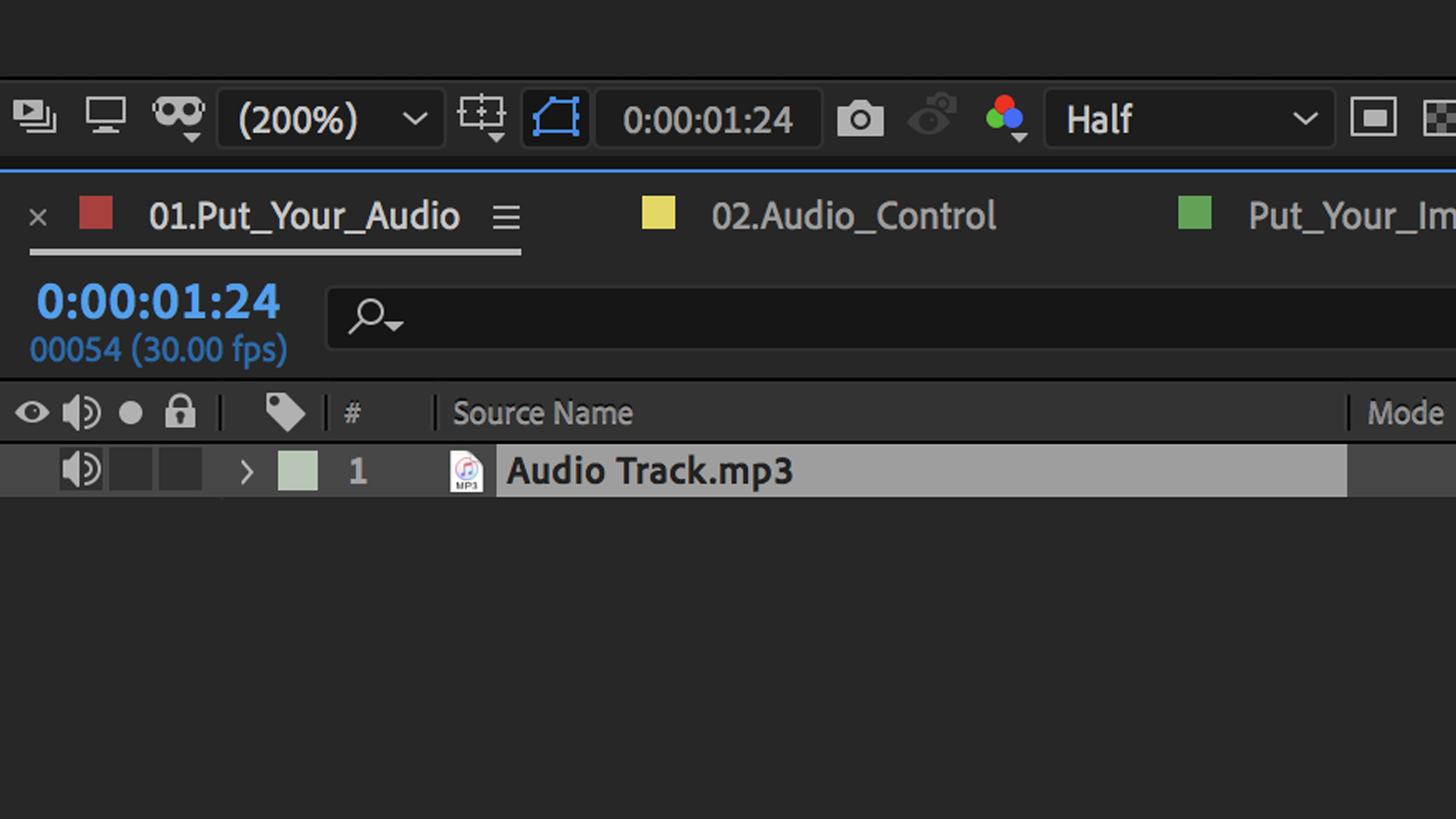
- Drag your audio file into a comp. The example is named Put_Your_Audio, but feel free to choose anything you wish.
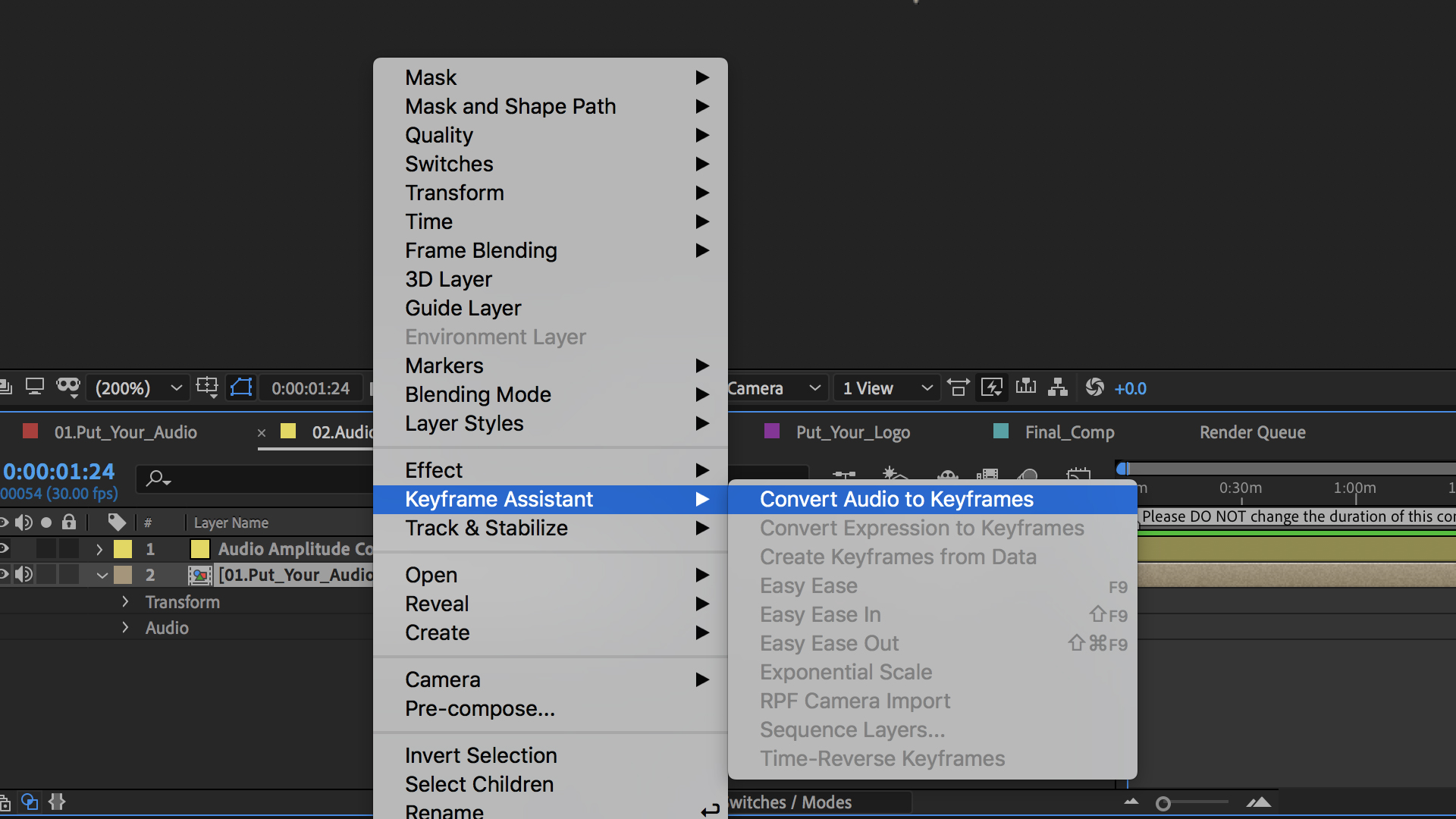
- Open the Audio Control comp and right-click on the Put_Your_Audio layer.
- Select Keyframe Assistant > Convert Audio to Keyframes.
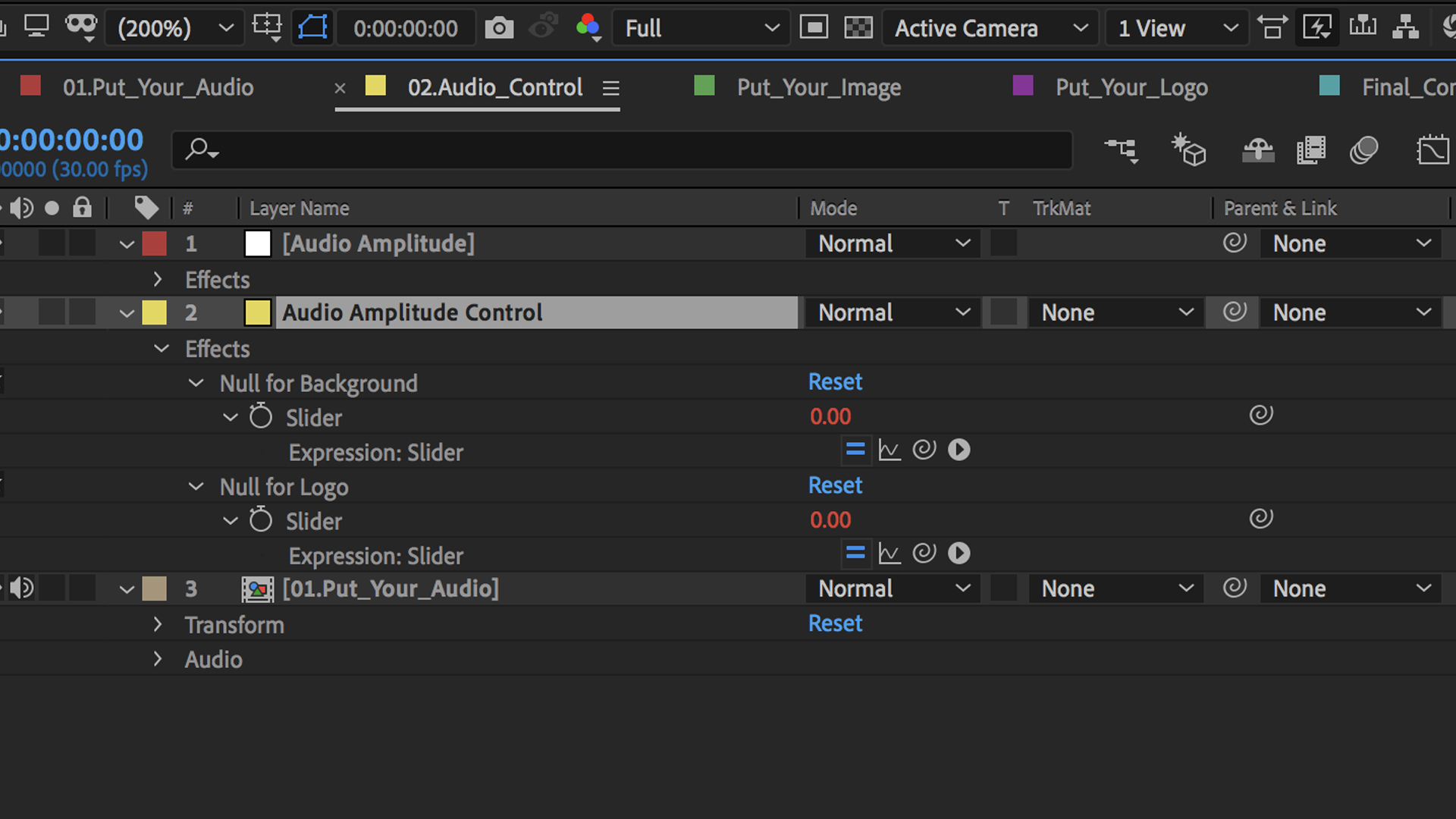
- Open the keyframes of the Audio Amplitude Control layer by clicking U on the keyboard.
- Activate the equals.
Prepare your footage
Now let’s get your video ready, too.
- You can drag and drop your picture into the Put_Your_Image comp and your logo into the Put_Your_Logo comp. Again, you can name these as you like for your video.
- Open Final_Comp and select your favorite design.
- Edit the text within the relevant Text comp layer.
Fine-tune the images
Let’s put the finishing touches on your audio spectrum in Premiere Pro or After Effects.
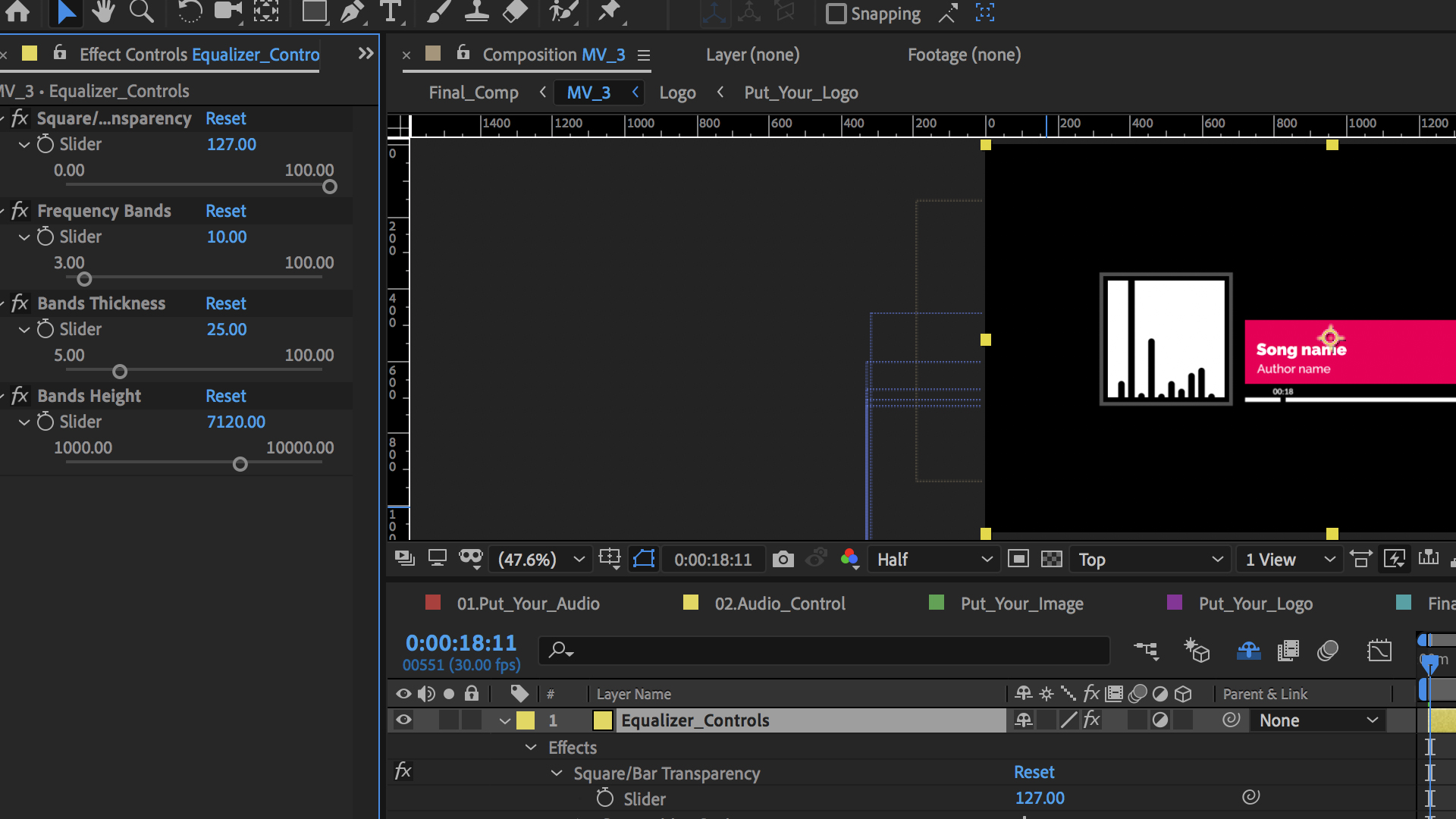
- In the Equalizer Controls folder, open the comp that matches your chosen design.
- Select the Equalizer Controls layer and go to Effect Controls.
- Adjust the settings to your liking.
- Back in the Final_Comp layer, click Effects Controls and adjust the settings until you’re happy.
Adjust the duration and render
- Go to Composition > Composition Settings and adjust the duration of the composition. Ensure the duration is the same as your audio track. Don’t change the duration of any other comps!
- Now, Render the project, and you’re done.
If you change the audio track in the same project, you must delete the Amplitude Controls details first and generate a new one.
Part 3: How to make your own audio visualizer
What if you don’t like any of the templates available? You can always make your own audio visualizer from scratch in After Effects. Here’s how.
Create the spectrum
Below, Motion Array will show you how to create your audio spectrum in After Effects. Again, the steps are very similar for most other video editing software.

- Create a new composition.
- Import your chosen audio file and drag it into your composition.
- Go to Layer > New > Solid.
- Click Make Comp Size and rename it Spectrum 1.
- Go to Effect > Generate > Audio Spectrum.
- Change the audio layer to your audio file.
- Adjust Thickness to 5 and Frequency Bands to 600.
- Change End Frequency to 200.
- Change Maximum Height to 400 and Audio Duration to 130.
- Adjust Side Options to Side A to make only the audio spectrum move upward.
- Duplicate the layer and move the second layer below the first one.
- Increase the Maximum Height to 900.
- Change the Inside and Outside Colors to something different.
- Repeat this process and increase the Maximum Height of this third layer to 1400.
Adjust the spectrum on a background
Now you’ll create the vibrant dancing audio spectrum for your audio visualizer.
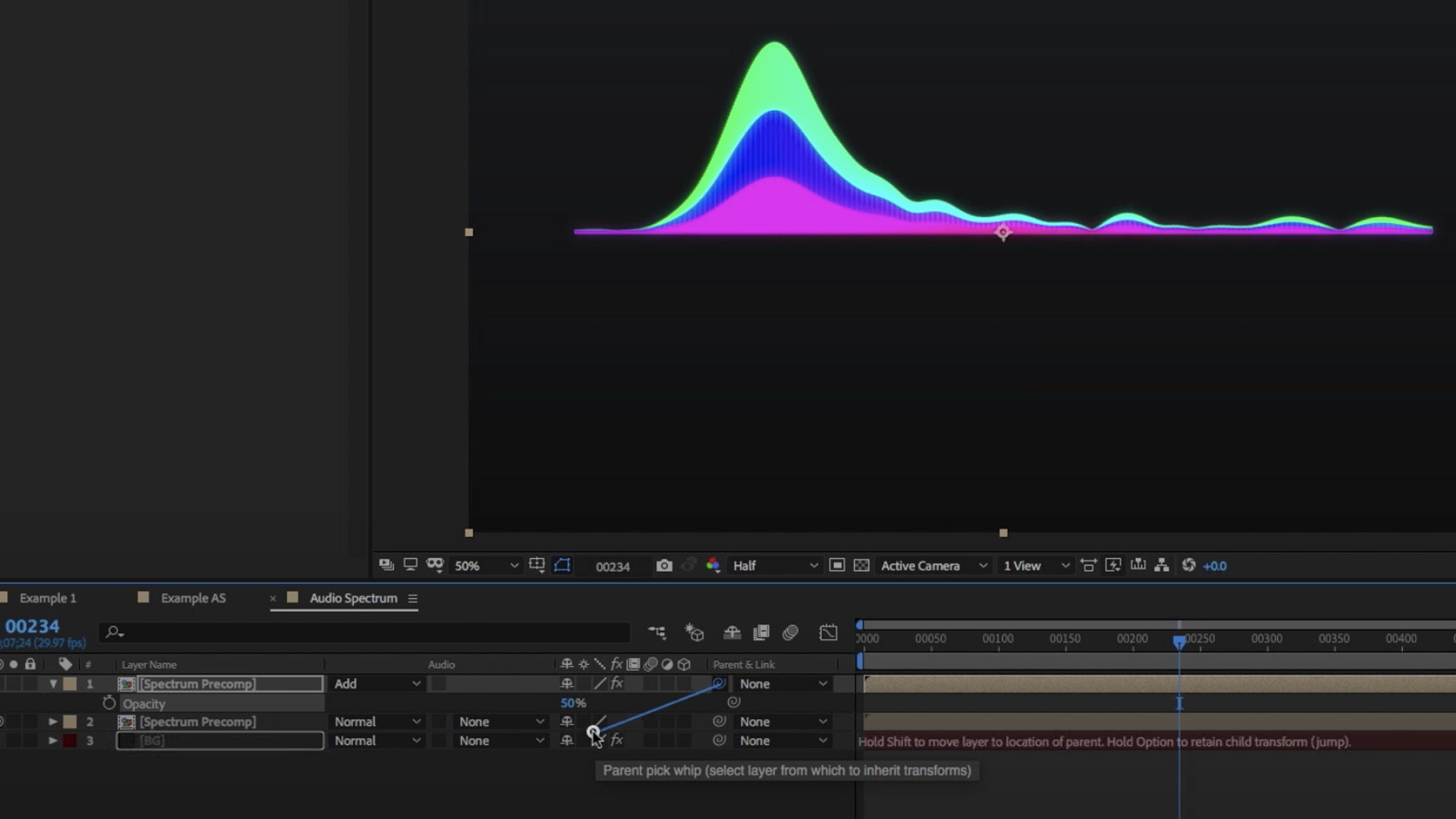
- Select all the layers, right-click, and select Precompose.
- Create a new solid layer and drag it below the spectrum.
- Go to Effect > Generate > Gradient Ramp.
- Adjust the colors to your liking.
- Duplicate the spectrum layer and turn off the audio of this duplicate.
- Go to Effect > Blur > Gaussian Blur.
- Change the blurriness to 35 and the layer mode to Add.
- Make the Opacity of that layer 50. This will give the layer a nice glow.
- Pair this new layer with the original spectrum.
And that’s it! Audio visualizers are incredible motion graphics tools for music videos, live music events, DJ sets, and YouTube channels. There’s a wide range of free and premium templates available to choose from. All you need to do is pick your favorite and adjust the settings. If they still aren’t working for you, you now know how to create your own audio visualizer in After Effects from scratch, too. Have fun!


